Snapseed or Lightroom Mobile for underwater photo editing?
Snapseed is free, fast, and sufficient for basic corrections (white balance, sharpness, selective adjust). Lightroom Mobile offers more power (native RAW, presets, cloud sync) but requires a subscription. Start with Snapseed, switch to Lightroom when you want to go further.
Can I edit RAW photos on a phone?
Yes, Lightroom Mobile handles RAW files natively (DNG, CR2, ARW). Snapseed does too, but with less control over advanced adjustments. If your camera or housing lets you shoot RAW, mobile editing remains possible.
How long does it take to edit an underwater photo on a phone?
With a practised workflow, expect 2 to 5 minutes per photo for a standard correction (white balance, exposure, dehaze, sharpening). More detailed corrections (selective, masks) take 5 to 10 minutes. A batch of 20 photos takes about an hour.
Is mobile editing as good as desktop?
For 90% of uses (social media, sharing, web portfolio), yes. The difference shows on large format prints or very fine corrections (luminosity masks, precise particle removal). For publishing between dives, mobile is perfectly adequate.
How do I transfer photos from my housing to my phone for editing?
From a GoPro or Insta360, Wi-Fi transfer via the dedicated app is fastest. From a compact in a housing, use an SD card adapter (Lightning or USB-C depending on your phone). Transfer takes a few seconds per photo.
Are there free Lightroom Mobile presets for underwater photography?
A few free presets exist online, but they are rarely calibrated for your water type. Better to create your own from successful edits. Three basic presets (tropical, Mediterranean, green water) cover most situations.
To learn how to get the most out of your gear underwater, discover the AquaExposure training.
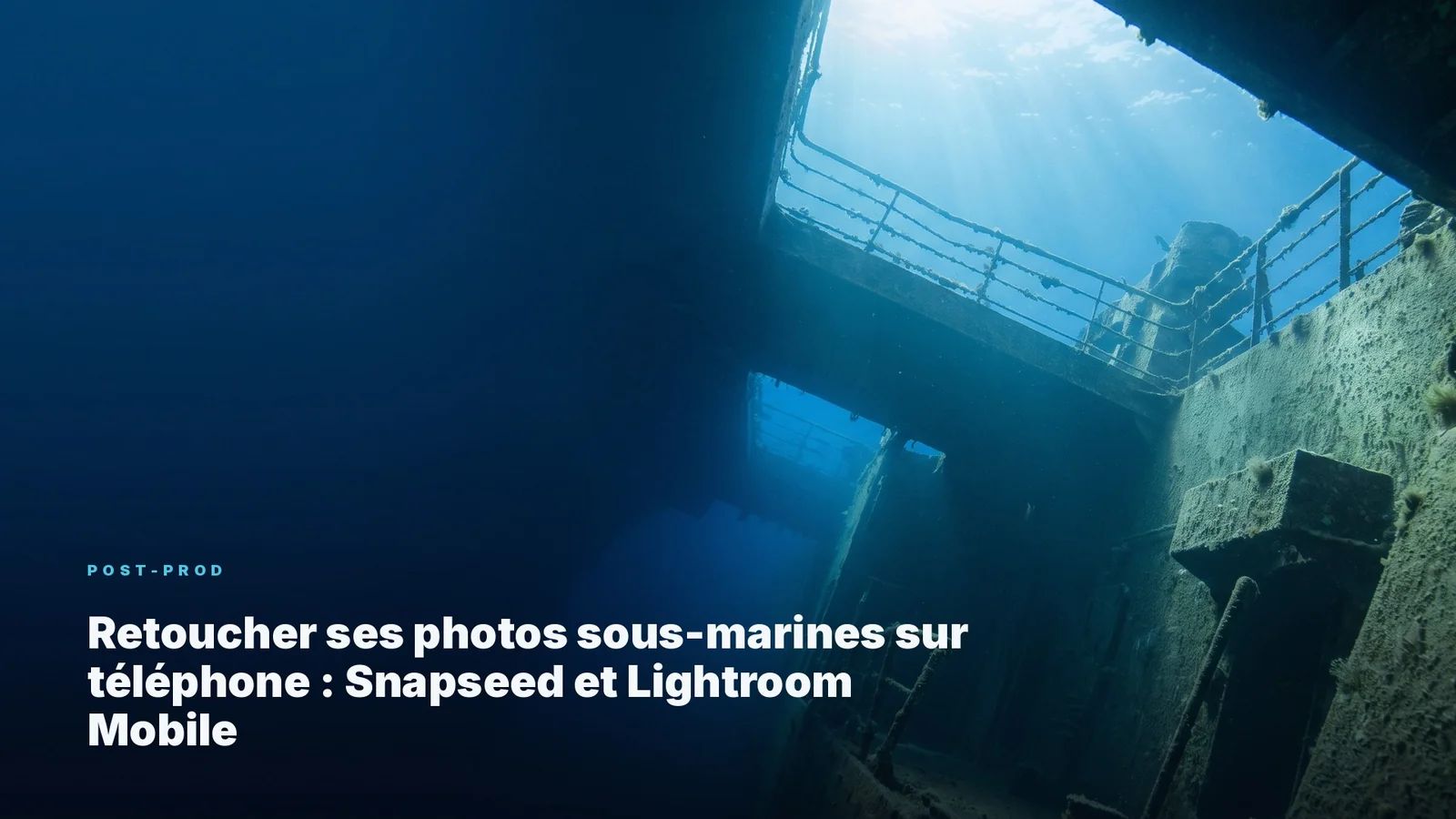
On the deck of a dive boat in Cyprus, between two immersions on the Zenobia wreck, I developed the habit of pulling out my phone during the surface interval. Not to scroll social media, but to edit photos from the dive that had just ended. By the time the tank was refilled, I had three or four photos ready to publish.
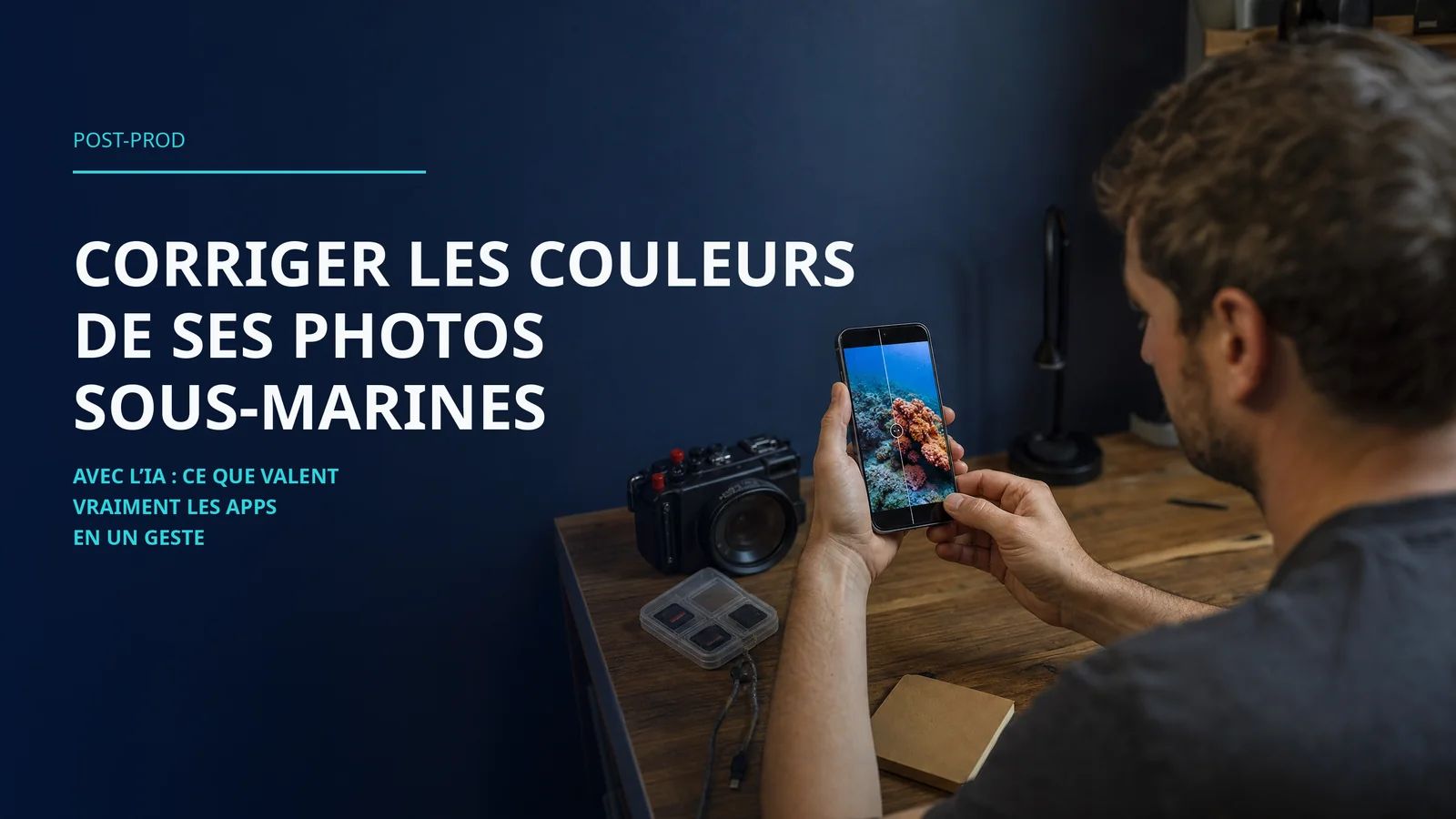
Editing underwater photos on a phone is possible, fast, and sufficient for most purposes. Two applications dominate the mobile workflow: Snapseed (free, developed by Google) and Lightroom Mobile (Adobe subscription, but remarkably powerful). Each has its strengths, and the two complement rather than compete with each other.
What truly changes the game is not which application you choose. It is having a workflow, a repeatable sequence of actions that transforms a blue, hazy photo into a readable image in five minutes. Without a workflow, you fumble, push sliders randomly, and the result is unpredictable. With a workflow, every photo goes through the same steps in the same order, and the result is consistent.
Snapseed: free and remarkably effective
Snapseed is often underestimated because it costs nothing. That is a mistake. The application offers professional tools in an interface designed for touch, and it handles RAW files (DNG) without any subscription.
The 5 essential tools for underwater photos
Not every tool in Snapseed is useful for underwater photography. Five of them cover 90% of needs.
White balance is the first adjustment. Underwater, the blue cast (in tropical water) or green cast (in the Mediterranean, in Belgium) throws off all colours. In Snapseed, the White Balance tool lets you correct temperature (warmer to counter blue) and tint (towards magenta to counter green). This is the most important correction and the one that most dramatically transforms an underwater photo.
Selective adjust lets you target a precise area of the image. Underwater, this is essential: the foreground needs more colour recovery than the background, and the blue water behind the subject does not need warming. A long press on the zone to correct, then adjusting brightness, contrast, or saturation on that zone alone.
The Details tool handles sharpness and structure. Sharpness recovers contours softened by the water column. Structure adds local contrast, highly effective for bringing out coral textures, fish scales, or sponge patterns.
Curves offer fine control over brightness by channel (red, green, blue). For underwater photos, raising the red channel is often the most effective single correction for recovering colours lost at depth. It is more precise than white balance alone.
The Glamour Glow tool (poorly named for our purpose) applies a haze reduction effect comparable to Lightroom's Dehaze. Underwater, suspended particles create a veil that reduces contrast. This tool recovers it in one gesture.
Snapseed workflow in 4 steps
The order of operations matters. In editing, each correction influences the ones that follow. Here is the sequence I teach in training and use myself on the boat.
First step: crop if necessary. No point correcting a badly framed image, it is wasted time. Crop first, correct second.
Second step: white balance. Temperature and tint. This is the foundational gesture of all underwater editing. If the white balance is wrong, no other correction will save the image.
Third step: colour and contrast correction. Curves (raise the red), selective adjust on the main subject, haze reduction. This is where the image goes from "blue" to "natural."
Fourth step: sharpening and finishing. Sharpness on subject details, slight vignette to guide the eye, export. Sharpening is always the last step, never the first.
The specific touch gesture to know in Snapseed: sliding vertically changes the active tool (brightness, contrast, saturation), sliding horizontally adjusts the value. Once this gesture is internalised, editing becomes fluid and fast.
Lightroom Mobile: desktop power in your pocket
Lightroom Mobile is a different league. The application is part of the Adobe ecosystem, requires a subscription (included in the Photography plan at about 12 euros per month), but offers capabilities that Snapseed cannot match.
What Lightroom Mobile does better than Snapseed
Cloud synchronisation is the first advantage. Photos edited on the phone appear automatically on the desktop (and vice versa). For the underwater photographer who edits a quick selection on the boat then refines on the computer at the hotel, this is a smooth, uninterrupted workflow.
Native RAW support in Lightroom Mobile is more comprehensive than Snapseed's. DNG, CR2, and ARW files are handled with the same depth as on desktop. The correction latitude is far superior to JPEG, which matters enormously for underwater photography where colour corrections are often extreme.
Presets (predefined settings) let you apply a complete edit in one tap. For the underwater photographer processing 50 photos after a day of diving, the time savings are considerable. I discuss these in detail in the article on Lightroom presets adapted to underwater photography.
Non-destructive editing means every modification can be undone or adjusted individually, even days later. Snapseed also offers an editing stack, but the control is less granular.
Lightroom Mobile underwater workflow
The sequence mirrors Snapseed, but the tools are more precise.
Start with the profile. Adobe offers colour profiles that modify the base rendering of the image. For underwater photography, the "Adobe Landscape" or "Adobe Vivid" profile often gives a better starting point than the standard profile.
Then exposure. Adjust overall exposure, highlights (often to lower, recovering the sky or the surface), shadows (to raise, seeing detail in dark backgrounds).
Temperature and tint work like Snapseed, but with a precise numerical slider. For underwater photos in tropical water, a temperature between 7000K and 9000K is often necessary (compared to 5500K at the surface). In the Mediterranean, expect 6000-7500K with a shift towards magenta.
The HSL panel (Hue, Saturation, Luminance) is the most powerful tool for underwater photography. It lets you adjust each colour independently. Desaturating the blue background water while boosting the oranges of a clownfish, that happens here. Nothing equivalent exists in Snapseed.
Dehaze in Lightroom is finer than the equivalent Snapseed tool. A single slider that recovers contrast lost in the water column. Be careful not to push too hard, the result quickly turns artificial.
Sharpening last, as always. Lightroom Mobile offers control over radius and masking, letting you sharpen subject details without sharpening background noise.
Choosing between Snapseed and Lightroom Mobile
The choice is not a religious war. Both applications serve different needs.
Snapseed fits perfectly if you shoot JPEG, if you want a free and fast application, if you edit occasionally (a few photos after each dive), and if you publish mainly on social media. It is the tool I recommend to beginners in underwater editing.
Lightroom Mobile becomes relevant if you shoot RAW, if you process large batches of photos, if you want cloud sync with a desktop, and if you use presets to speed your workflow. It is the tool one naturally migrates to when mobile editing becomes a habit.
Nothing stops you from using both. Snapseed for quick corrections published within the hour. Lightroom Mobile for more polished series, destined for portfolio or print.
Mobile gestures that make a difference
Editing on a phone demands adaptation. The screen is small, fingers are large, and the precision of a mouse is missing. A few gestures compensate for these limitations.
Long press in both applications shows the before/after comparison. This is the most useful gesture in mobile editing. It lets you verify in real time whether the correction improves or degrades the image. For underwater photos, where corrections are often strong, this constant check prevents pushing sliders too far.
Two-finger pinch in Snapseed lets you zoom in on a detail to check sharpness or a compression artefact. In Lightroom Mobile, the same gesture works.
The editing stack in Snapseed (icon in the top right, then "View edits") lets you return to each correction individually, modify or delete it. This is Snapseed's version of non-destructive editing.
For underwater photos, one last practical tip: set your screen brightness to maximum during editing. On a boat in full sun, a screen at 50% brightness will make you overcorrect your exposures. What looks "correct" on a dim screen will be too bright on a normal one.
Edit on the boat, publish in the evening
The real advantage of the mobile workflow is not technical. It is emotional. Sharing a photo just hours after the dive, when the memory is still vivid and the excitement intact, is a pleasure that the desktop workflow simply cannot offer.
On a week of diving, I edit 5 to 10 photos per day on my phone during surface intervals. The best ones are published that evening. The rest wait for the return home for deeper processing on the computer.
This is not a compromise. It is a two-phase workflow that lets you enjoy the trip without accumulating a discouraging editing backlog. And for before/after comparisons, mobile produces perfectly publishable results.
The best edit is the one you actually do. And if that happens on a phone, between two dives, with your feet in the water and salt on your fingers, then it is the right edit.
*AquaExposure receives no affiliate commission on the applications or services mentioned in this article. Recommendations are based on teaching experience and pe
Editing Underwater Photos on Your Phone: Snapseed and Lightroom Mobile | AquaExposure